Schedules
A Schedule in Screenflex allows you to control when a specific playlist should play on a channel.
While a channel normally plays its assigned playlist continuously, schedules give you the ability to override that behavior at specific times and dates.
Schedules act as timed rules—similar to cron jobs—that activate a playlist on a channel during defined time windows. This gives you precise control over daily, weekly, or seasonal content changes without needing to manually switch playlists.
What Is a Schedule?
A schedule is a time-based rule that links:
- A channel
- A playlist
- A specific timeframe (date, time, and recurrence)
When the schedule becomes active, it temporarily overrides the channel’s default playlist.
When the schedule ends, the channel returns to playing its main assigned playlist automatically.
Schedules are ideal for:
- Time-specific promotions
- Morning vs. afternoon menus
- Weekend vs. weekday content
- Seasonal announcements
- Event-based displays (e.g., “Black Friday”, “Company Meeting”, “Holiday Hours”)
Schedules Overview Page
The Schedules page displays all scheduled rules you have created. You can switch between two views:
1. Grid View
A structured table listing each schedule with the following details:
- # – Index number
- Channel – The channel the schedule applies to
- New Playlist – The playlist that will play during the schedule
- Scheduled at – Start date and time
- Ends at – End date and time
- Recurrence – How often the schedule repeats (daily, weekly, monthly, yearly, or once)
- Actions – View or delete the schedule
This layout provides a clear, sortable view of all schedules in your system, making it easy to review timing and rule conflicts.
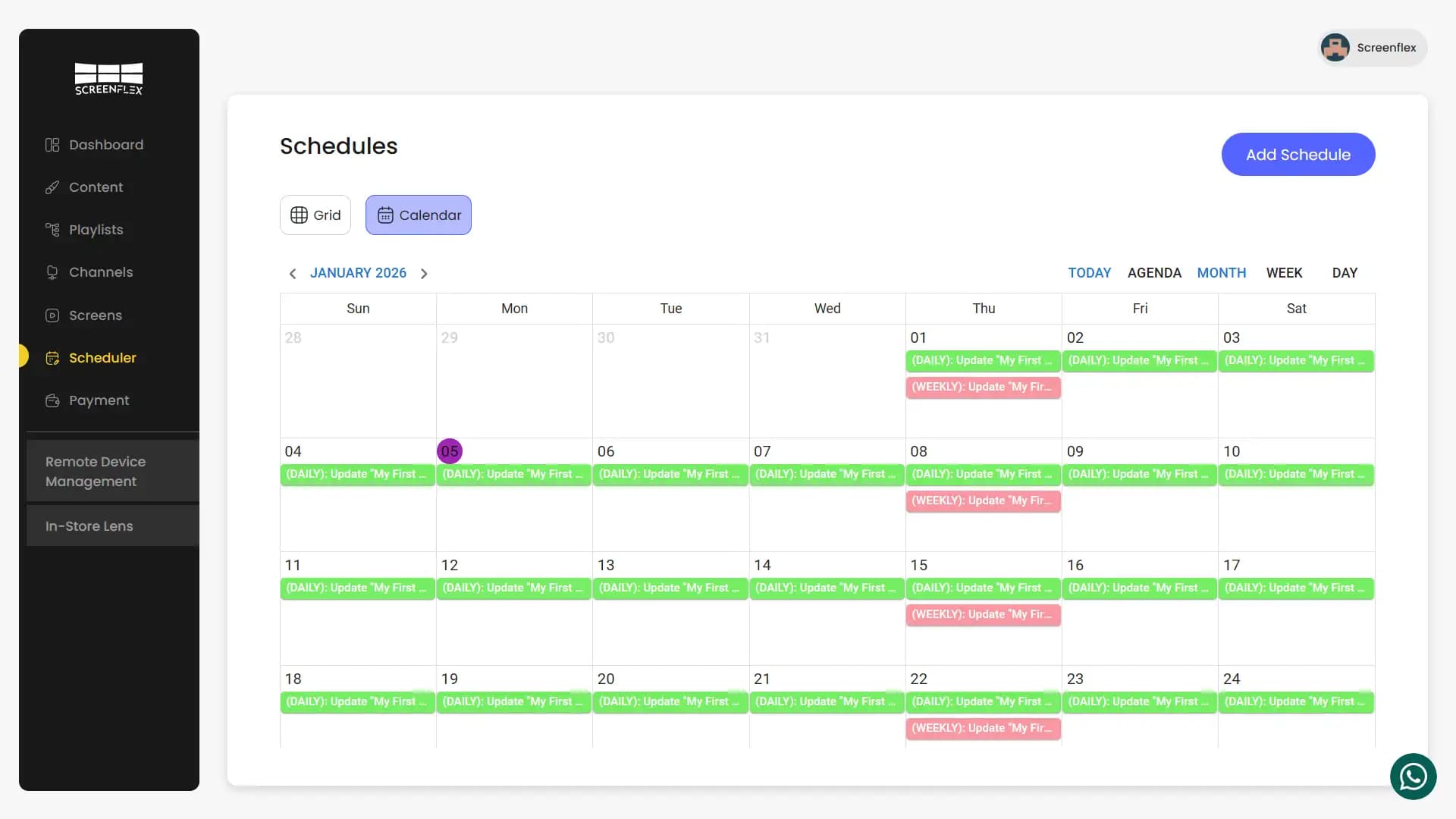
2. Calendar View
A visual calendar displaying all schedules by date.
This view supports multiple modes:
- Month view (default)
- Week view
- Day view
- Agenda view
- Today shortcut
Each scheduled item appears on the appropriate date, colored and positioned to indicate its time range. This makes it easy to see overlapping schedules or spot empty time slots.
The calendar navigation at the top allows you to move between months, weeks, and days.
Creating a New Schedule
To create a new schedule, click Create Schedule.
A form will appear with the following fields:
- Channel
Select the channel that this schedule will control.
When the schedule becomes active, it temporarily overrides the channel’s normal playlist.
- New Playlist
Choose the playlist that should play during the scheduled time window.
This playlist becomes active only during the schedule’s duration, after which the channel automatically returns to its regular playlist.
- Scheduled At
Select the start date and time.
This defines when the playlist should begin playing on the channel.
- Ends At
Choose the end date and time.
The scheduled playlist stops exactly at this time and the channel switches back to its default playlist.
- Repeat
Choose how often the schedule repeats:
- Does not repeat
- Daily
- Weekly
- Monthly
- Yearly
This allows you to automate recurring changes without recreating schedules manually.
Once all required fields are filled, click Add Schedule.
Your schedule is created instantly and appears in both the Grid View and Calendar View.
How Schedules Affect Playback
When the scheduled time arrives:
- The selected playlist activates on the channel immediately.
- All screens connected to that channel switch to the scheduled playlist.
- When the end time is reached, the channel returns to its normal playlist.
- If the schedule is recurring, it will repeat automatically according to its recurrence rule.
Schedules only affect playback during their active window and never modify the channel’s default playlist.
Deleting a Schedule
Deleting a schedule permanently removes the time-based rule.
Once deleted:
- The channel continues playing its default playlist.
- No future automated overrides occur.
A confirmation prompt ensures you don’t delete schedules accidentally.